

Keyed-in MOTO Payments — PCI Compliance Guide
Brippo lets you take phone and mail orders (MOTO) by typing the customer's card number directly into the Brippo Dashboard, the Brippo iOS app or the Magento admin. This is the most flexible way to take a phone order — and the only Brippo payment flow that changes your PCI compliance level. Read this page before enabling it.
Three ways to take a phone order
Not every phone order needs keyed-in entry. Brippo supports three MOTO flows, and two of them require no extra compliance work at all:
- Pay by Link: you send the customer a secure payment link by email or SMS while on the call, and they type their own card details. Your PCI level is unchanged (SAQ A) and 3D Secure still protects the payment. This should be your default for phone orders.
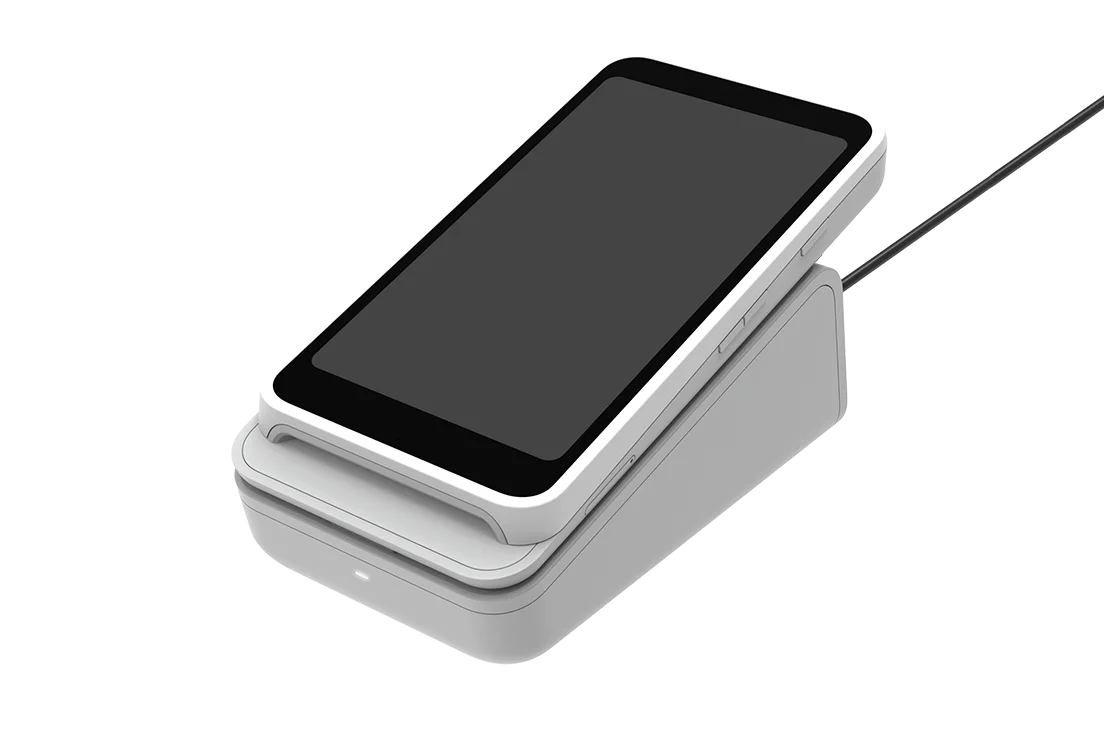
- Keyed on the terminal reader: you type the card number on your Brippo POS terminal's own keypad (for example the S700). The number is encrypted inside the certified device, so you stay on your existing SAQ P2PE terminal attestation. Nothing extra to do.
- Keyed into the Dashboard, iOS app or Magento admin: you type the card number into a form on your computer or phone. This makes your business a virtual terminal under PCI DSS and requires a SAQ C-VT attestation — the subject of this guide. An iPhone running the Brippo app is not a certified payment device — typing a card into the app counts the same as typing it into a web form.
What keyed-in MOTO means for your business
Enabling keyed-in MOTO comes with two commitments. Neither is hidden in fine print — they are the deal:
- SAQ C-VT attestation: PCI DSS classifies staff-keyed card entry as a virtual terminal. Instead of the short SAQ A questionnaire, you complete the longer SAQ C-VT and must actually operate the way it describes (see the requirements below). Brippo pre-fills the document for you, but the operating discipline is yours.
- No 3D Secure — liability is yours: MOTO payments skip 3D Secure by definition (the cardholder isn't present to complete a challenge). If a keyed-in payment turns out fraudulent, the chargeback liability sits with you, not the card issuer. Treat keyed-in MOTO as a trusted-customer flow.
Your SAQ C-VT obligations
To truthfully attest to SAQ C-VT, your day-to-day handling of phone orders must meet these conditions:
- Dedicated device: key card numbers only on a device set aside for payment entry — not the laptop that also runs your email and browsing. A cheap dedicated tablet or locked-down PC is the usual answer.
- One transaction at a time: card numbers are keyed manually, one payment at a time, directly into the Brippo form. No batch files, no spreadsheets of card numbers, ever.
- No electronic storage: never save, type into notes apps, or email a card number. Brippo never stores it either — the number goes from your browser or app straight to Stripe, our PCI-validated processor.
- Destroy paper immediately: if you jot a number down during a call, shred or destroy the note as soon as the payment is entered. Paper with card numbers is auditable evidence.
- Basic device hygiene: keep the payment device's operating system updated, run anti-malware, use individual user accounts with proper passwords.
- Annual re-attestation: the SAQ C-VT is renewed yearly. Regenerate the document from the Dashboard each year and keep it on file.
Generating your SAQ C-VT in the Brippo Dashboard
Brippo generates the completed SAQ C-VT document for you, the same way it does for your e-commerce and terminal assessments.
- 1
Open Compliance and Documents
- Log in to the Brippo Dashboard.
- Go to Settings → Compliance and Documents and choose Generate PCI assessment.
- 2
Pick the virtual terminal option
- In the assessment type selector, choose the option for card details keyed into the Brippo Dashboard or Brippo apps (the virtual terminal assessment). The e-commerce and terminal options remain separate documents — generate those too if you use those channels.
- Fill in your company details (name, contact, address). These are printed onto the official PCI document.
- 3
Tick the eligibility confirmations
The generator will not produce the document until you confirm each eligibility statement. You are asserting, on your company's behalf, that:
- Card numbers are keyed on a dedicated device used for payment entry.
- Payments are keyed one transaction at a time.
- You never store card data electronically in any form.
- Any paper holding a card number is destroyed as soon as the payment is entered.
- 4
Generate, sign and file
- Click Generate — the Dashboard produces your completed SAQ C-VT as a PDF, pre-filled with your details and the correct payment-channel descriptions.
- Have an executive officer sign the attestation page, and keep the document on file. Your acquirer or bank may request it.
- Repeat annually — the document carries its completion date.
Enabling the payment methods
Keyed-in MOTO is off by default everywhere, and generating the SAQ C-VT is part of switching it on:
- Brippo Dashboard (phone payment): the keyed-in card form unlocks once your account has a generated SAQ C-VT document. Without it, the Dashboard points you back to the compliance wizard.
- Brippo iOS app (manual charge): the app's manual charge screen lets you key in a card for a phone order. Using it makes you a virtual terminal — hold the SAQ C-VT attestation before taking payments this way. The dedicated-device requirement applies to the phone itself, so use a device reserved for taking payments, not a personal phone. If you have a Brippo terminal, prefer keying on the reader; the app can hand the payment off to it.
- Magento admin (keyed MOTO method): enable the dedicated backend payment method in Magento Admin → Configuration → Brippo Payments. It ships disabled; the setting itself reminds you that a SAQ C-VT attestation is required.