
User guide for Brippo Portal
- 1
Create a Payment Link
- Go to the Payments section within the dashboard.
- Click on the Payment Link button situated in the top-right corner of the dashboard.
- 2
Add Required Data and Customize the Link
- Add Title: Enter a descriptive title to identify the payment link.
- Add Amount: Specify the amount you wish to charge.
- Add Number of Payments: Define the number of payments if it is a split payment.
- Add Customer Email: Enter the customer's email address where the link will be sent.
- Add a Reference: Enter an internal reference for your control. This reference will not be visible to the customer.
- 3
Create the Payment Link
- Click on the Create Payment Link button. This button will also display the amount to be charged.
- 4
Send the Payment Link
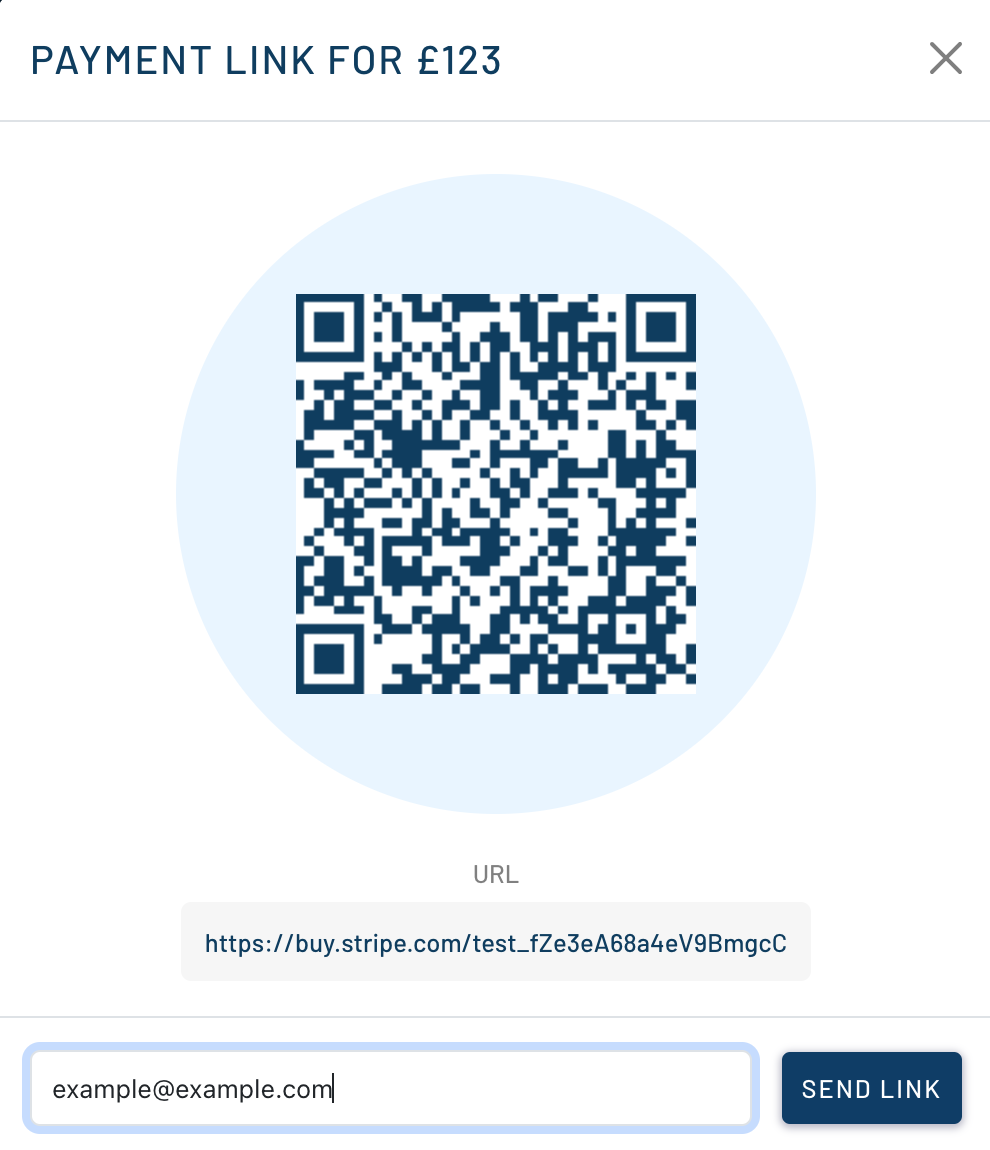
- Once the link is created, a pop-up will appear with a QR code that redirects the customer to the payment, along with the corresponding link.
- Verify that the customer's email is correct and click on the Send Link button to send the payment link to the customer.