

Email Template Configuration
- 1
Create a New Email Template
- Select Email Templates from the dropdown menu.
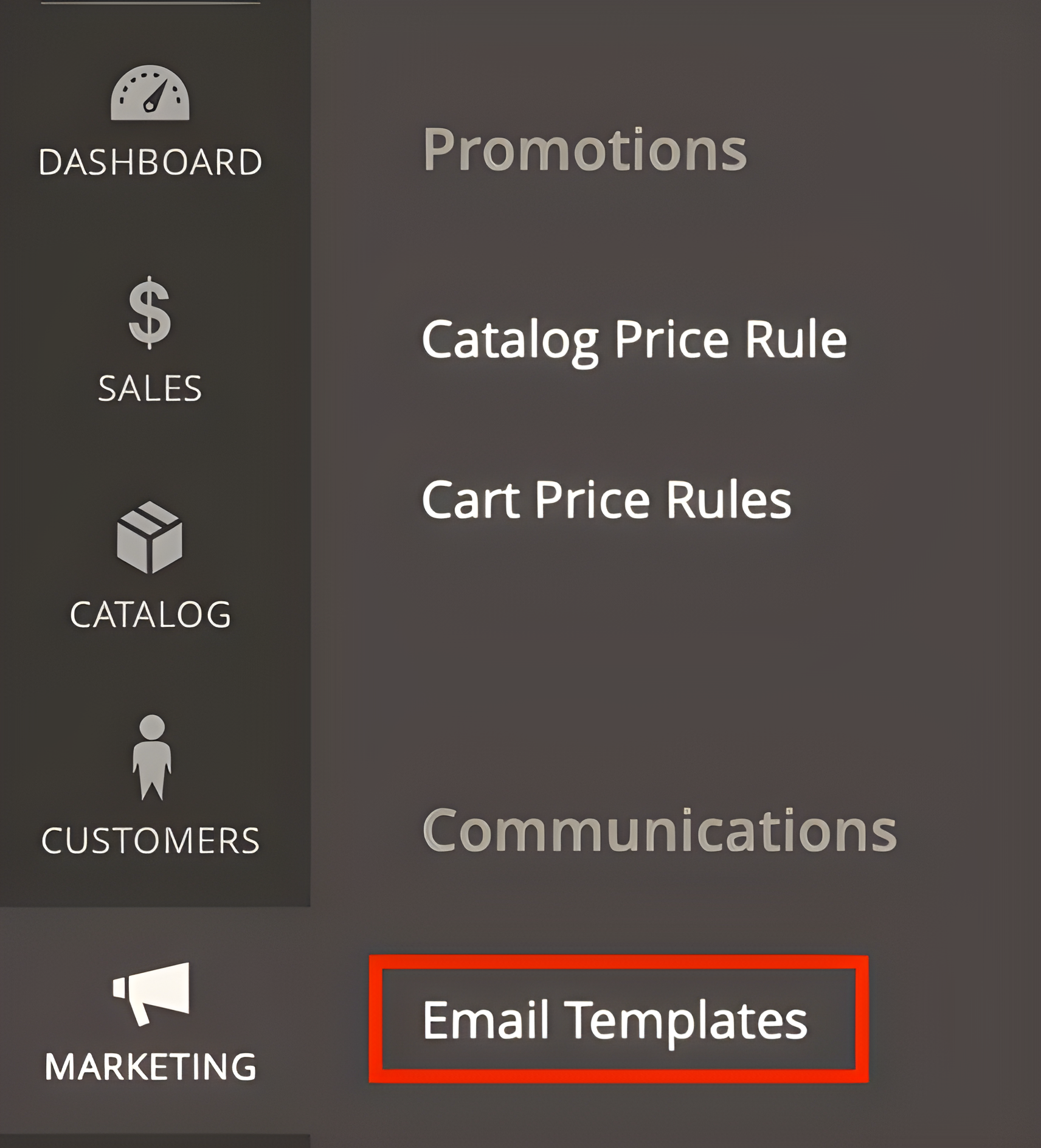
- Click the Add New Template button at the top right of the page.
- 2
Select a Base Template
- In the Template field, choose an existing template from the dropdown if you want to start with a pre-designed template.
- 3
Specify Template Information
- Template Name: Enter a unique name to identify the template.
- Template Subject: Write the subject line of the email.
- Template Content: Input the email content in the editor. Use the formatting options and dynamic variables as needed.
- 4
Save the Template
- Once you've filled in all the necessary fields, click Save Template to save your new template.
- 5
Modify an Existing Email Template
- Find the template you want to edit in the list of templates.
- Click Select next to the template name and choose Edit.
- Make any necessary changes and click Save Template to update it.
- 6
Assign the Email Template to a Transaction
- Navigate to Stores / Configuration.
- Expand the Sales section and select Payment Methods.
- Find the Brippo configuration in the list of payment methods and select PayByLink.
- Within the Brippo configuration for PayByLink, go to the Email Template section.
- For each email type (e.g., New Order, Invoice), select your newly created template from the dropdown menu.
- 7
Click Save Config to apply the changes.
- Always test the email template to ensure correct formatting and content in the final email.
- You can use dynamic variables and custom content blocks to personalize your emails based on store needs.
i
Important Note: The template selected in the payment method configuration will be used both for the payment process on the frontend and for its display in the Magento backend. Make sure to choose a template that works well in both areas to ensure a consistent experience.