

Installation
Pick your platform — both flows install Brippo Payments end-to-end.
To install Brippo Payments in Adobe Commerce (Magento) 2.3 / 2.4 via Composer follow the steps below.
- 1
Configure repository credentials.
bashcomposer config repositories.ebizmarts composer https://packages.ebizmarts.com composer config http-basic.brippo.gitlab.ebizmarts.com brippo -- "-yz1n13sCpxBo9dDVGz4v286MQp1OmcH.01.0w1wi8g0w"
- 2
If your store integrates eBizmarts POS solutionOptional
Install the following additional extension depending on your Adobe/Magento edition.
bashcomposer config http-basic.pos.gitlab.ebizmarts.com apiuser zPMZ7EY6cyJDHTgshzSK composer require ebizmarts/pos-meta "~102" composer require ebizmarts/pos-brippobashcomposer config http-basic.pos.gitlab.ebizmarts.com apiuser zPMZ7EY6cyJDHTgshzSK composer require ebizmarts/pos-ee "~101" composer require ebizmarts/pos-brippo - 3
If your store integrates eBizmarts POS solution AND supports MSI moduleOptional
bashcomposer require ebizmarts/pos-multi-source-inventory
Configure your locations
- Go to the Magento admin panel.
- Add your locations and warehouses where you'll manage inventory.
Associate products with sources
- Edit the products and associate them with the inventory sources.
Verify the setup in POS
- Ensure your POS system recognizes the changes and correctly displays inventory across multiple locations.
iDevices tab The Devices tab in the POS system allows you to manage and configure devices, assign stores, update keys, and set up payment methods. For help with this configuration reach out via Get support. - 4
Install Brippo Payments packages.
bashcomposer require ebizmarts/brippo-payments
- 5
Finally, run magento deployment commands.
bashbin/magento setup:upgrade bin/magento setup:di:compile bin/magento setup:static-content:deploy
To install Brippo Payments in WooCommerce you will need the files for a Manual Installation. You can contact us via Get support for the files or installation help.
- 1
Open the Plugins section in WordPress.
After getting the files, open the Wordpress admin page and go to the Plugins section in the lower left corner.
- 2
Upload the Brippo Payments plugin file.
Select Add New Plugin next to the 'Plugins' title, press the Upload Plugin button next to the 'Add Plugins' title, choose the Brippo Payments for WooCommerce file and press Install Now.
- 3
Verify the installation.
If correctly installed you should see the Plugin in the Plugins > Installed Plugins section, like below.
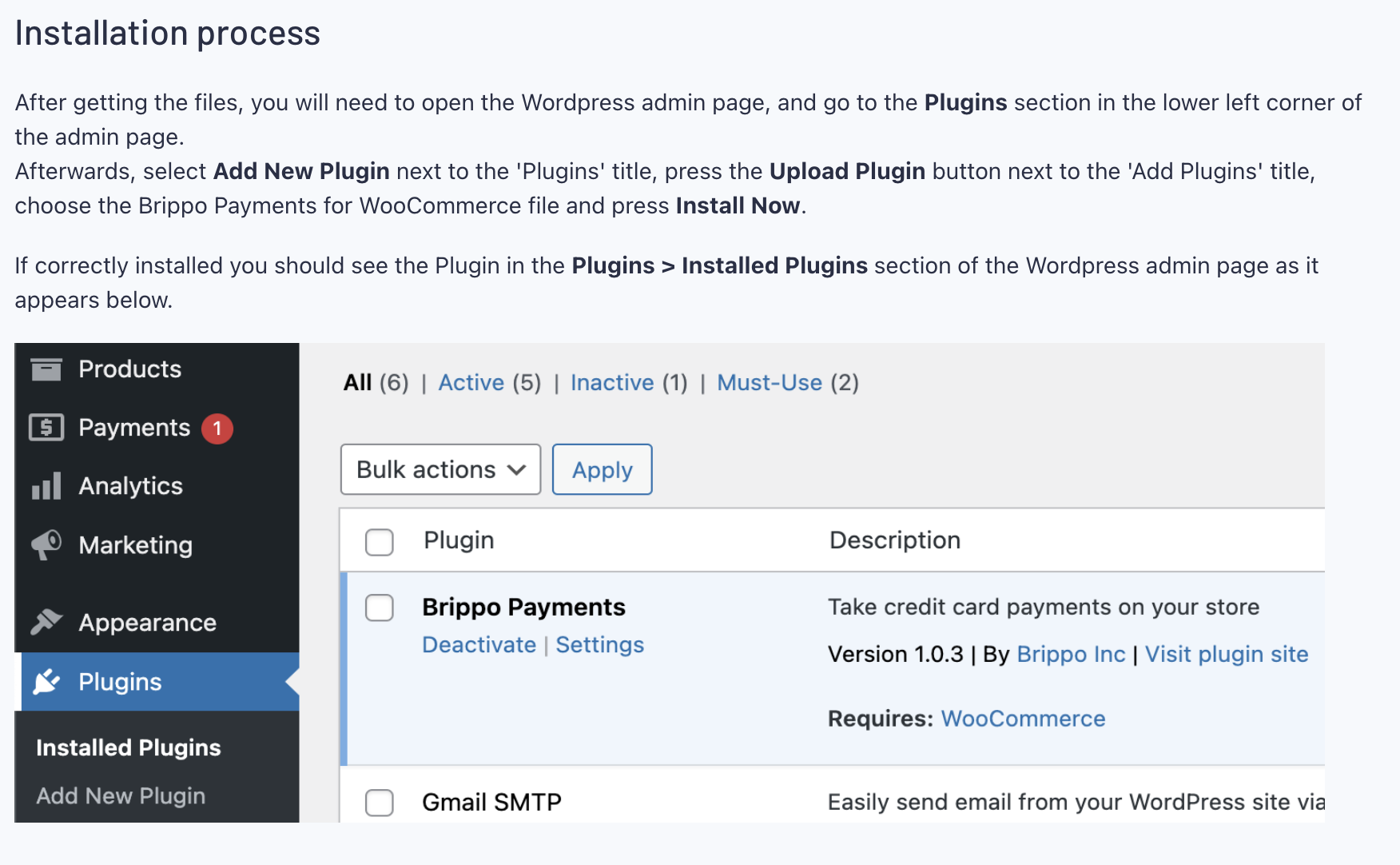 Brippo Payments listed under Plugins → Installed Plugins.