
Recover Checkout
Recover Checkout brings back orders that were canceled or never finished payment. You can run it on autopilot or trigger it per order from the Magento admin.
Checkout fails
The order lands in Magento as canceled or unpaid.
Pending PaymentBrippo reaches out
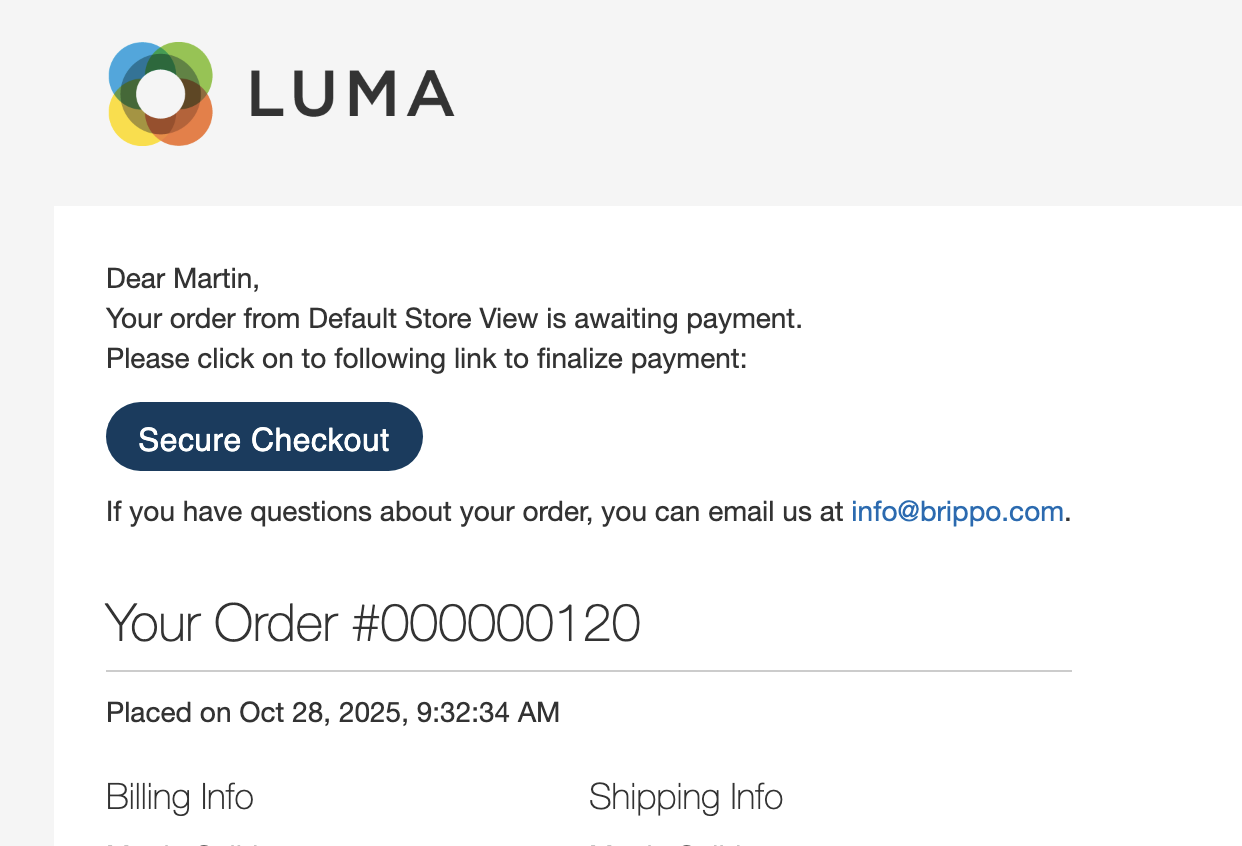
A recovery email, WhatsApp or SMS goes out — automatically, or per order with one click.
Customer pays in one click
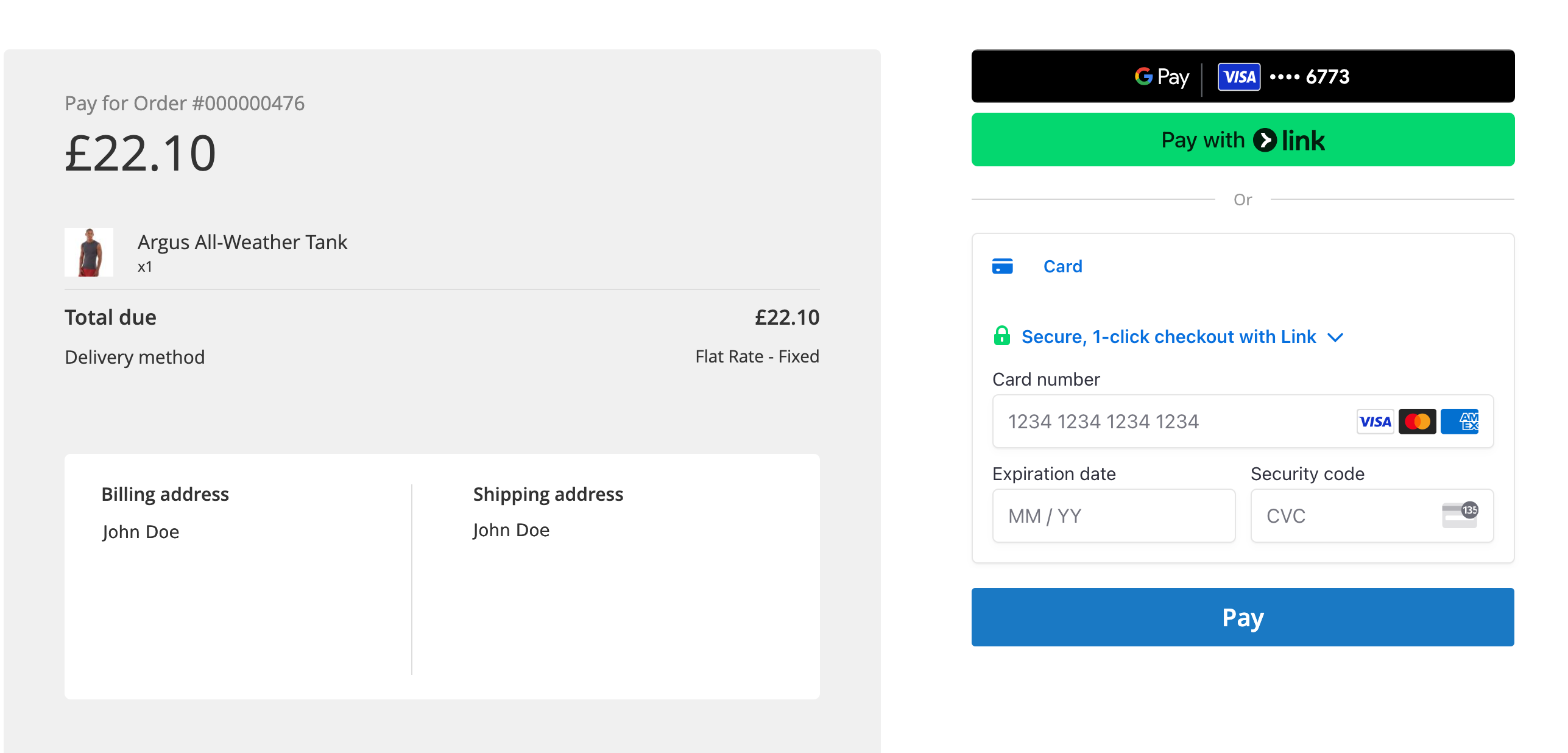
The secure link opens a pre-filled checkout — no re-entering the cart.
Order recovered
The order is marked paid — recovered revenue shows in your dashboard.
ProcessingAutomatic Recovery
Brippo can send recovery notifications to customers at configurable intervals. No manual intervention required.
- 1
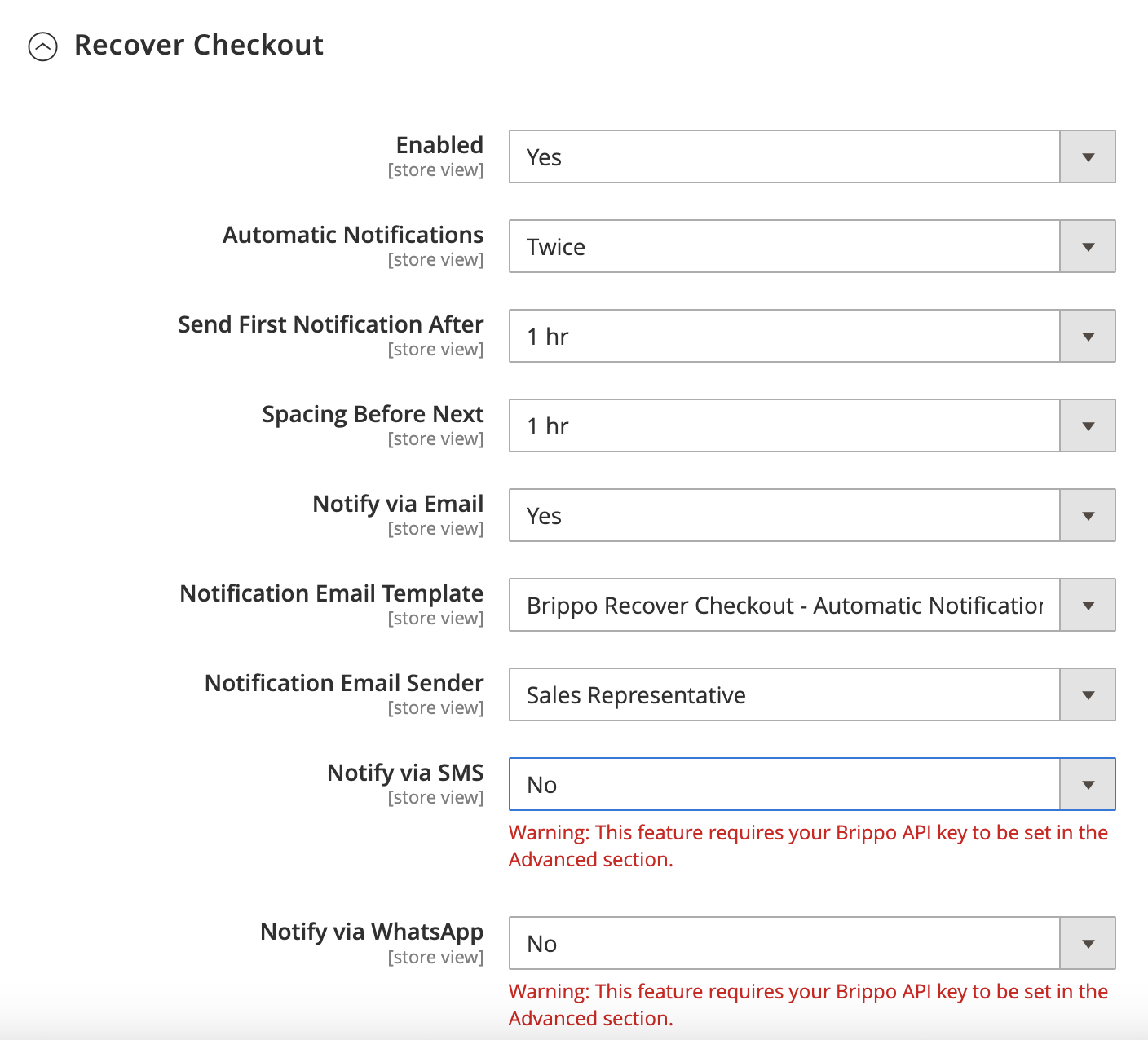
Enable Recover Checkout
- Navigate to Stores → Configuration → Sales → Payment Methods → Brippo Payments.
- Expand the Recover Checkout section and set it to Enabled.
- 2
Configure Automatic Notifications
- Automatic Notifications: how many recovery messages per order (1 to 5, or Disabled).
- Send First Notification After: delay between order cancellation and the first message (1 hour to 1 week).
- Spacing Before Next: spacing between subsequent notifications (1 hour to 1 week).
- 3
Choose Notification Channels
Enable one or more channels for recovery notifications:
- Notify via Email: sends a recovery email using a configurable template and sender identity.
- Notify via SMS: sends a text message with the recovery link (requires Brippo API key).
- Notify via WhatsApp: sends a WhatsApp message with the recovery link (requires Brippo API key).
- 4
Customise the Email Template
Optional- Select a custom template under Notification Email Template.
- Choose the sender identity under Notification Email Sender.
- To create or edit templates, go to Marketing → Email Templates in Magento.
Manual Recovery
Recover individual orders directly from the Magento admin order view.
- 1
Open the Order
- Navigate to the order you want to recover.
- The order status must be Canceled or Pending Payment.
- 2
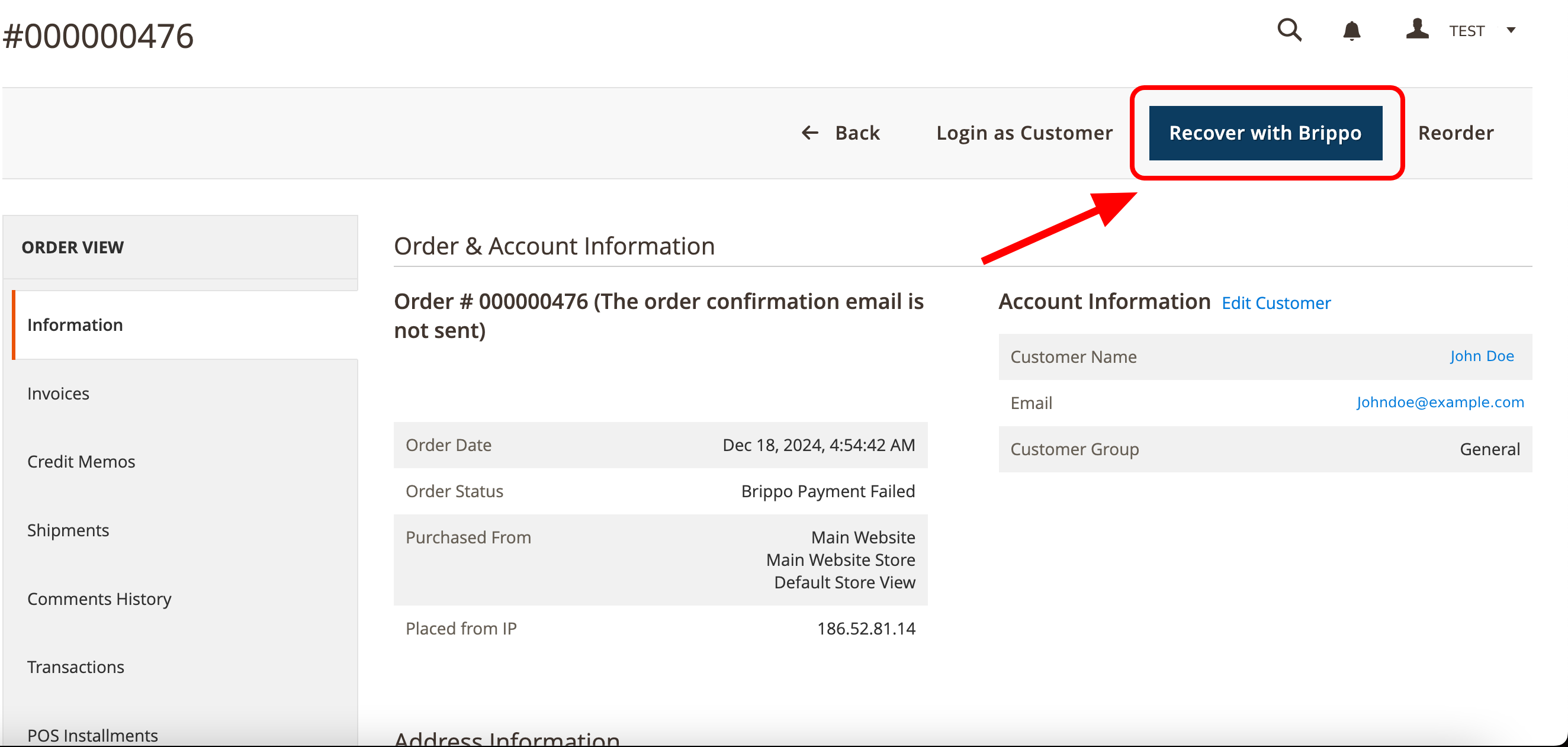
Click "Recover with Brippo"
- In the Information section of the order, click the Recover with Brippo button.
- 3
Onboarding or Log-In Check
- If your Brippo account is not connected, an onboarding window appears. Follow the prompts to log in.
- If already connected, you proceed to the email setup screen.
Need help connecting your account? See the Setup Connected Account guide.
- 4
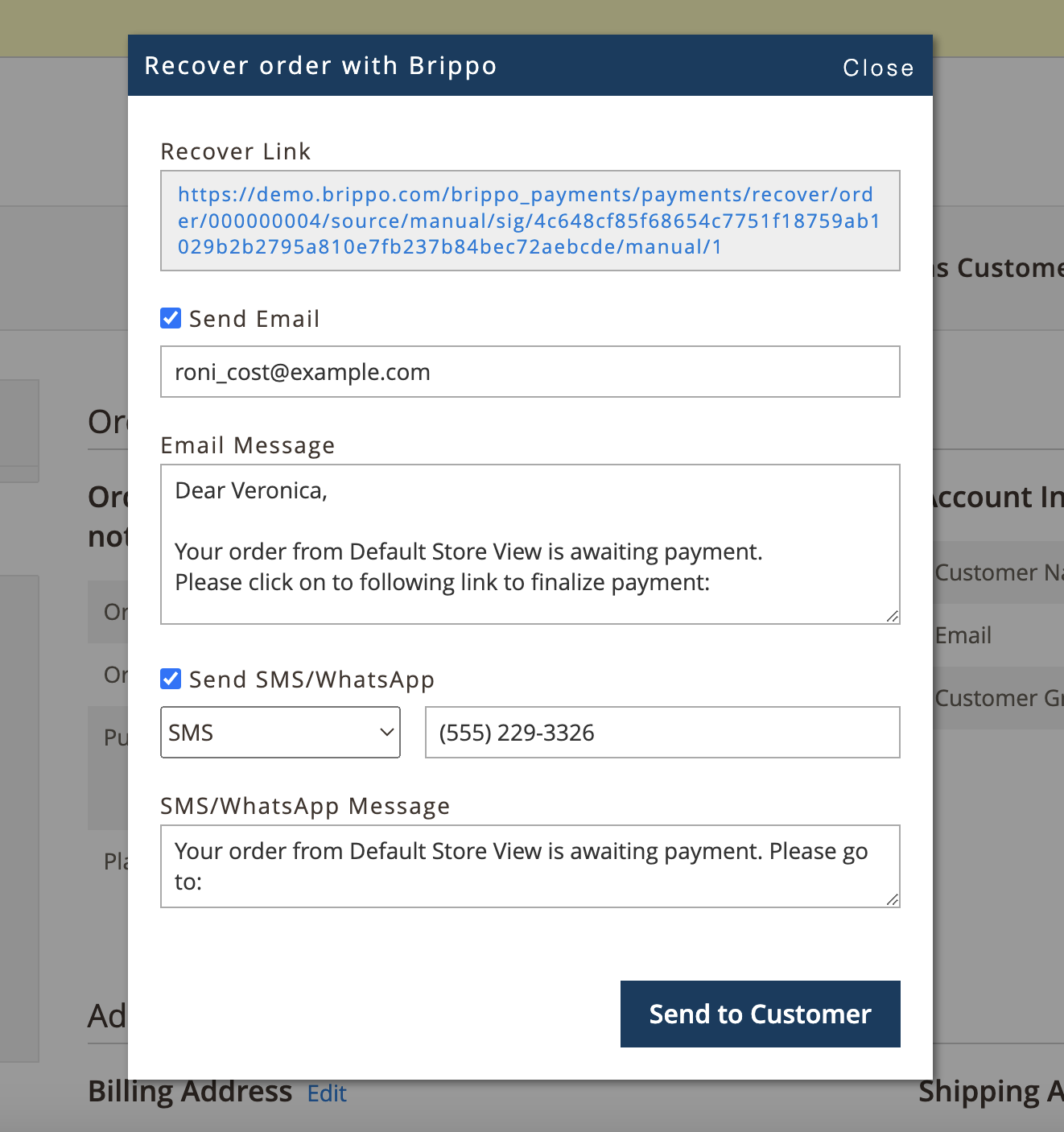
Configure and Send the Notification
The recovery panel includes:
- Recover Link: generated automatically. This is the link sent to the customer.
- Send Email: toggle to send an email — pre-filled with the customer's email and an editable message.
- Send SMS / WhatsApp: toggle to send via SMS or WhatsApp; select the channel and enter the phone number.
Review the details and click Send to Customer.
Customer Experience
After receiving the recovery notification, the customer clicks the payment link, lands on a pre-filled checkout page with the original order details, and completes payment immediately.